 @zoltandulac
 @zoltandulac
 Zoltan Hawryluk
The text was rotated using CSS3 Transforms, with alternate CSS for older IE using the IE Transform Translator. Original photo by Emilian Robert Vicol clipped with polyClip.js
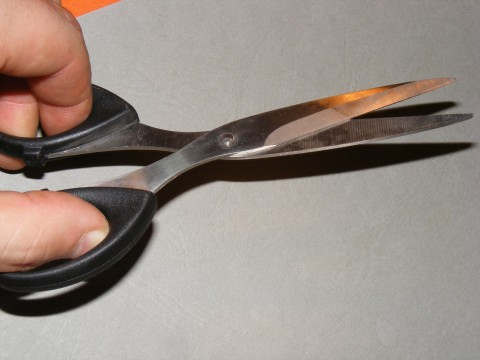
There have been many times I have come across the need to take an image and cut an irregular shape out of it. Normally, when a developer comes across this requirement, the only thing to do is to open the image up with your favorite graphics editor, use the select tool to cut out the shape you want, and then save the result as a PNG, since it is the only image format used by all web browsers that support alpha channels. The problem is that PNG images, while compressed, are not as small as JPEGs if the source image is a photograph, and the download time of a page can balloon to unacceptable levels if there are many of these types of image on a page. When I first came across this problem, I didn’t think there was an obvious solution, but after a lot of thought, I created a library that uses HTML5 canvas to clip a JPEG (or any other image for that matter). The library also supports older versions of IE (7-8) using the Excanvas JavaScript library which polyfills canvas using VML.
Okay, How Can I Do The Same Thing?
- Download my script from github (It includes jQuery 1.6.4 and excanvas release 3. It should work with later versions — if it doesn’t, please let me know and I’ll fix it ;-) ) .
- Include them into the head of your document.
  <script src="/path/to/js/jquery-1.6.2.min.js"></script>

  <!--[if lt IE 9 ]>
   <script src="/path/to/js/excanvas/excanvas.compiled.js"></script>
  <![endif]-->

  <script src="/path/to/js/polyClip-p.js"></script>
- Layout your page as normal, placing
imgtags where you want the clipped images to go:
<div class="clipParent">
  <img src="images/image.jpg" />
</div>
Note the
divtag with the class ofclipParent. You must surround all the image tags withdata-polyclipattributes set one. This is so you can style the image correctly, since the library will remove the image tag and replace it with acanvaselement. - For every image on your page that you want to clip, calculate the points of the shape you want to cut out of the image and place them in the
data-polyclipattribute. For example, let’s say you have the following shape you want to cut out of a photograph: (487, 4)(500, 239)(19, 239)(43, 195)
You would then just set the
data-polyclipattribute to those points:<img src="image.jpg" data-polyclip="487, 4, 500, 239, 19, 239, 43, 195" />Note that the point co-ordinates are comma delimited. If you don’t want to calculate these numbers by hand, you can use your favorite imagemap generation tool to do generate the list of coordinates. Just remember to take the coordinates out of the imagemap code and stick it in the
data-polyclipattribute (for the examples on this page, I used the on-line tool available at image-maps.com).
Why Should I Do This Instead of Using a PNG?
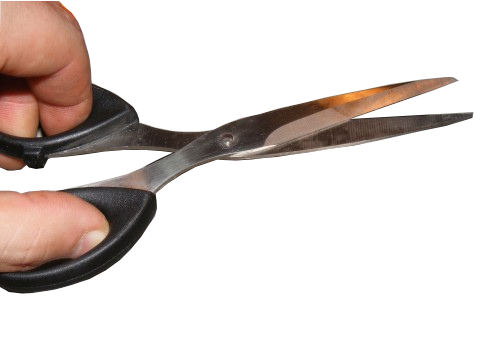
Compare the image above with a PNG clipped with the GIMP. Even when I compressed the PNG with my PNG optimization script, the 191K PNG file is huge compared to it’s tiny 18K polyclipped JPEG analogue (Note: file sizes refer to the size of the full image as displayed at the top of this article):
| JPG using polyClip.js (18K) | PNG (191K) |
|---|---|
|
|
|
You may ask whether the amount of JavaScript used in this solution is greater than the bandwidth saved by using JPEG compression. Not including jQuery, the amount of JavaScript clocks in at 2K or 13K, depending on the browser used (2K for the compressed polyClip script and 11K for excanvas, which will only be loaded by IE7-8). Although jQuery adds 91K to this equation, it doesn’t matter that much to me personally since I am probably using it for other parts of my page anyways. Even with jQuery, the amount of JavaScript downloaded outweighs using a PNG, especially if your are clipping a larger image or a huge amount of smaller images.
Download the latest version of polyClip.js from github.
A Few Caveats
- In IE7 and 8, the image may appear briefly as a black outline before the image appears. Other than that, it looks about the same as the other browsers.
- The image does not show up correctly in Opera Mini. Then again, a lot of things (e.g. CSS3 text-shadows, CSS3 Transforms, etc.) don’t show up correctly in Opera Mini. :-)
24 responses so far
1 Tonttu
// Nov 1, 2011 at 9:05 am
Tonttu
// Nov 1, 2011 at 9:05 am
Very nice! Is there a plugin for GIMP/Photoshop to get the coordinates of selection edges automatically?
2 zoltan
// Nov 1, 2011 at 10:27 am
zoltan
// Nov 1, 2011 at 10:27 am
@Tonttu: The syntax for the coordinates are the same as the format used for HTML imagemaps. The GIMP has an Image Map tool built in and its user manual has an excellent tutorial on how to use it. Photoshop apparently has a built-in image-map tool as well, but I have never used it. If anyone tries it, please let me know if it works or not. :-)
3 Tonttu
// Nov 2, 2011 at 6:18 am
Tonttu
// Nov 2, 2011 at 6:18 am
Your technique is so novel that an automated/semi-automated tool does not yet exist. Before your script there has not been a need for generating image map coordinates based on selection edges. This non-existing tool should generate the coordinates with a definable density and also allow for manual adding of coordinate nodes. Hmm.. nodes.. this gives me an idea: maybe vector graphics nodes could be converted to coordinates?
4 zoltan
// Nov 3, 2011 at 5:11 pm
zoltan
// Nov 3, 2011 at 5:11 pm
@Tonttu: I am not sure, but I don’t think you understood what I meant by getting coordinates with the gimp. In the GIMP’s Image Map tool, you can select points using a polygon tool. I will add instructions on how to get these coordinates to this post in the next few days.
5 Nicholas
// Nov 15, 2011 at 5:57 am
Nicholas
// Nov 15, 2011 at 5:57 am
Thank You for sharing – and for pushing the boundaries! I have just made a site for which i need to somehow compress 700kb pngs. This solution comes in very handy.
6 zoltan
// Nov 17, 2011 at 11:21 pm
zoltan
// Nov 17, 2011 at 11:21 pm
@Nicholas: Cool! Any chance on seeing it in action?
7 fernando
// Jan 4, 2012 at 7:12 am
fernando
// Jan 4, 2012 at 7:12 am
There’s a way to calculate the image co-ordinates if you have Illustrator installed. You can create an image map (via attributes palette), then export the code and take the co-ordinates from there. Haven’t tried it with polyclip.js though, but I will do it on my next project.
Thanks for sharing – fantastic tool!
9 Kristof Polleunis
// Jun 15, 2012 at 1:41 pm
Kristof Polleunis
// Jun 15, 2012 at 1:41 pm
Although the technique is awesome and has it’s value I think the size of the png here is exaggerated. I could bring it down to 28 kb using pngout which is better in performance than optipng and to a qualitylevel equal to the jpg.
https://dl.dropbox.com/u/471136/scissors.png
10 abv
// Jul 9, 2012 at 5:05 pm
abv
// Jul 9, 2012 at 5:05 pm
Great!
This is an extremely helpful tool, indeed!
Great work and thanks for sharing.
Did anyone try to wrapper inside a jquery slider?
11 Jeff
// Jul 17, 2012 at 11:47 am
Jeff
// Jul 17, 2012 at 11:47 am
Awesome stuff here! I know the purpose is to not use large transparent PNGs, but can the edited file be saved as one instead of a canvas element? I ask b/c we’re building a Facebook app that will need to use transparent photos in Flash — so we’d need to save this new image and then use it Flash.
Thanks!
12 Julien B.
// Jul 18, 2012 at 12:50 pm
Julien B.
// Jul 18, 2012 at 12:50 pm
Yeeepeeeh ! Wonderful tool.
For days, I was struggling with various browsers and methods (svg, canvas, css masks…) for achieving such clipping. That rocks !
A comment : to grab path points, from inkscape/illustrator save your path as svg, then open it in a code editor.
Many, many thanks.
14 zoltan
// Aug 12, 2012 at 10:49 am
zoltan
// Aug 12, 2012 at 10:49 am
@Jeff: JPEGs do not support alpha channels natively, hence the reason for the script to make it happen. Unfortunately, there is no way to save the result as a JPEG (trying to save the image in Firefox, for example, results in a PNG being saved.
15 zoltan
// Aug 12, 2012 at 10:52 am
zoltan
// Aug 12, 2012 at 10:52 am
@abv: I have made a refactored version of this script that has been used in an animated slider using jQuery’s
animate()resulting in some really cool effects. Will post my results in a future post.16 zoltan
// Aug 12, 2012 at 11:01 am
zoltan
// Aug 12, 2012 at 11:01 am
@Kristof: It depends on the PNG. The more colours and the more detail the PNG has, the greater the filesize, and even using PNGOUT or other optimization tools will not fix the issue without serious degradation of the image. But you are right in that developers should always look at image optimization first before using JS whenever possible.
17 Martin
// Aug 16, 2012 at 7:48 am
Martin
// Aug 16, 2012 at 7:48 am
Hi there!
First of all, great job!
I’m trying to implement this on a wordpress page and I’m getting an error in the last line, I don’t know if it is WordPress thing or the fact that I’m trying to make it work in local with MAMP.
if (polyClip.isOldIE) {
$(window).bind(‘load’, polyClip.init);
} else {
$(document).ready(polyClip.init);
// the error is: Uncaught TypeError: Property ‘$’ of object [object Window] is not a function
}
Thanks!
18 Joe
// Aug 22, 2012 at 2:01 pm
Joe
// Aug 22, 2012 at 2:01 pm
Zoltan, Great script. Can this script be used for multiple images that need to be masked on the same page? I was thinking using clipparent in each of my divs and then the coordinates within each image source. I haven’t tried it yet, but before I started doing all that I wanted to ask.
Thanks
Joe
19 zoltan
// Aug 24, 2012 at 4:05 pm
zoltan
// Aug 24, 2012 at 4:05 pm
@Joe: Absolutely! I have used this script for a variety of clients in a production environment animating many clipped images. As a matter of fact, I am in the middle of writing an article at the moment that will describe how to use a new version of the polyClip.js script to do animated masking, with or without
requestAnimationFrame, with lots of statistics to show the benefits of the “with” category. Stay tuned. :-)20 zoltan
// Aug 24, 2012 at 4:13 pm
zoltan
// Aug 24, 2012 at 4:13 pm
I am assuming that you do not have jQuery loaded into your page. Try that first. If that doesn’t work, please post a URL which contains the problem you have so that I can help you troubleshoot better.
21 Joe
// Aug 27, 2012 at 8:13 pm
Joe
// Aug 27, 2012 at 8:13 pm
Another Quick Question. Is there a way to resize the canvas output? I have it inside the div and the div resizes when I manually change the browser size, but for some reason when I look at it for the first time on the iphone it gets all distorted as if it was 960px or so. This also holds true if I resize the browser to mimic the same width of an iphone or ipad and hit refresh. Any thoughts? Thanks
22 rk
// Nov 22, 2012 at 12:26 am
rk
// Nov 22, 2012 at 12:26 am
Hi there,
thanks for this – it’s awesome. Jut wondering if you could outline a way to ensure the images scale when you resize the browser window? I tried adding max-width:100%; to all img and canvas elements, but still can’t get it to work..
23 zoltan
// Nov 25, 2012 at 3:06 pm
zoltan
// Nov 25, 2012 at 3:06 pm
@rk: At the moment there isn’t a resize event hook for the clipped images, but I see how this can be useful and well keep it in mind for the next release (which I am currently working on, so stay tuned).
24 Miroslav
// Jan 3, 2013 at 10:43 am
Miroslav
// Jan 3, 2013 at 10:43 am
This could be useful for simple shape images, but making coordinates map for complex images is time consuming. Also, I’m not sure can you handle wide borders with alpha transparency (wide area with semi transparency that blends with background).
The best tool to compress PNGs was Flash. It was a long time ago, but as I remember, while compiling, Flash was dividing image into 2 parts – image border with alpha transparency and inner part converted into JPG with mask above it. Now Flash is dead and we have to reinvent things ;)
Give Feedback
Don't be shy! Give feedback and join the discussion.
Please Note: If you are asking for help using the information on this page or if you are reporting a bug with the code featured here, please include a URL that shows the problem you are experiencing along with the browser/version number/operating system combination where the issue manifests itself. Without this information, I may not be able to respond.